How to Create Custom Revit Families Efficiently
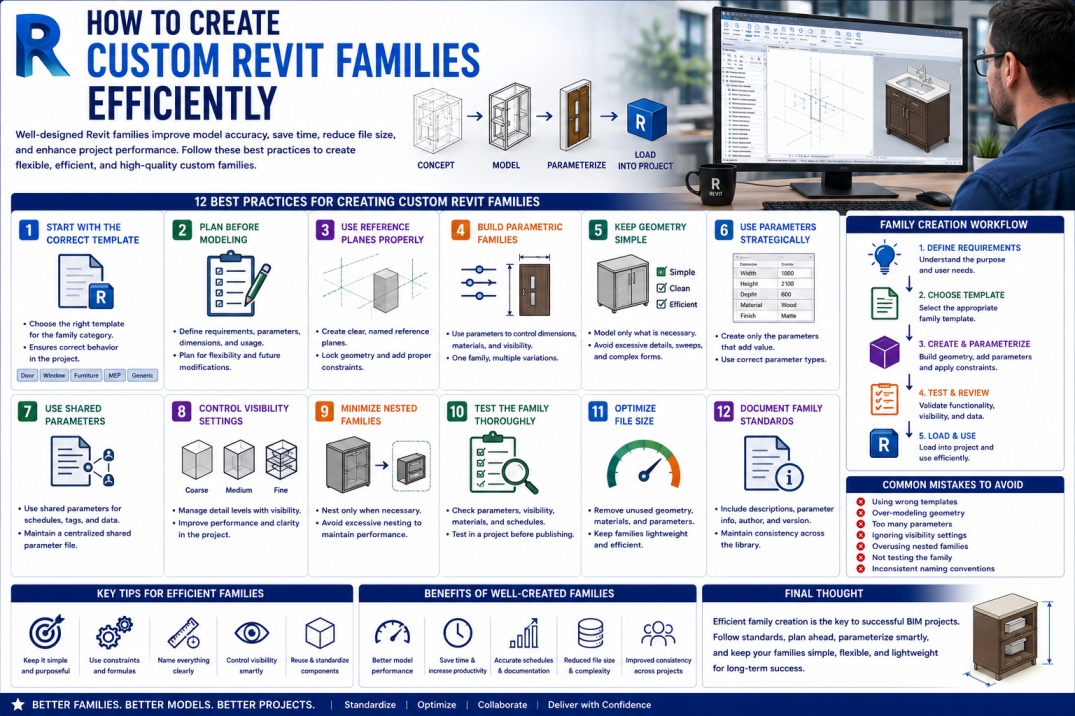
Revit Families are one of the most important components of Building Information Modeling (BIM). Every wall, door, window, piece of furniture, mechanical unit, electrical device, and plumbing fixture placed inside a Revit project is based on a family.
While Autodesk provides a large collection of standard families, many projects require custom content that meets specific design, manufacturer, or project requirements. This is where custom Revit Family creation becomes an essential skill for BIM professionals.
However, creating families efficiently requires more than simply modeling geometry. Poorly created families can slow down projects, increase file sizes, cause scheduling issues, and reduce overall BIM quality.
This guide explores practical strategies for creating custom Revit families efficiently while maintaining flexibility, performance, and BIM standards.
What is a Custom Revit Family?
A custom Revit family is a user-created BIM object designed to represent a specific building component that is not available in the standard Revit library.
Custom families may include:
- Architectural components.
- Manufacturer-specific products.
- Mechanical equipment.
- Electrical devices.
- Plumbing fixtures.
- Specialized furniture.
- Custom casework.
- Project-specific elements.
These families contain geometry, parameters, metadata, and behavior that support project documentation and coordination.
Why Efficient Family Creation Matters
Many BIM users focus solely on creating families that look accurate. However, efficiency is equally important.
An inefficient family can:
- Increase project file size.
- Reduce Revit performance.
- Create scheduling errors.
- Complicate maintenance.
- Increase modeling time.
- Cause coordination issues.
Efficient families improve productivity while maintaining accuracy and functionality.
1. Start with the Correct Family Template
Choosing the appropriate family template is one of the most important steps in family creation.
The template controls how the family behaves within Revit.
Common Templates
- Door.
- Window.
- Furniture.
- Lighting Fixture.
- Mechanical Equipment.
- Generic Model.
- Face-Based Family.
- Work Plane-Based Family.
Selecting the correct template from the beginning prevents many issues later in the process.
2. Plan Before Modeling
Many users begin creating geometry immediately without defining family requirements.
Before modeling, consider:
- How the family will be used.
- Required parameters.
- Scheduling needs.
- Level of Detail requirements.
- Visibility settings.
- Future modifications.
Planning helps reduce rework and ensures the family meets project requirements.
3. Use Reference Planes Properly
Reference planes form the foundation of parametric family creation.
They control family behavior and help maintain flexibility.
Best Practices
- Name reference planes clearly.
- Use center reference planes.
- Lock geometry to reference planes.
- Create logical constraints.
Well-structured reference planes make families easier to modify and maintain.
4. Build Parametric Families
Parametric families allow users to modify dimensions and behavior through parameters.
Instead of creating multiple family versions, one parametric family can support many configurations.
Examples
- Adjustable door sizes.
- Variable furniture dimensions.
- Flexible equipment layouts.
- Configurable casework systems.
Parametric design improves efficiency and reduces library duplication.
5. Keep Geometry Simple
One of the most common family creation mistakes is using excessive detail.
While detailed geometry may appear impressive, it often creates performance problems.
Recommendations
- Model only necessary details.
- Use symbolic representations when appropriate.
- Avoid unnecessary sweeps and blends.
- Reduce excessive curves.
Simple geometry contributes to faster project performance.
6. Use Parameters Strategically
Parameters provide flexibility, but excessive parameters can make families difficult to manage.
Only create parameters that provide real value.
Common Parameter Types
- Dimensions.
- Materials.
- Visibility controls.
- Identity data.
- Manufacturer information.
- Performance data.
Well-designed parameter structures improve usability and scheduling.
7. Use Shared Parameters When Necessary
Shared Parameters are essential when information must appear in schedules, tags, or project-wide reports.
Benefits include:
- Consistent data management.
- Reliable scheduling.
- Improved tagging.
- Better BIM interoperability.
Organizations should maintain a centralized shared parameter file to ensure consistency.
8. Control Visibility Settings
Not all family geometry needs to appear at every detail level.
Visibility controls help manage model complexity and improve performance.
Visibility Options
- Coarse.
- Medium.
- Fine.
Simplified representations at lower detail levels can significantly improve project performance.
9. Minimize Nested Families
Nested families can improve flexibility, but excessive nesting often creates performance challenges.
Use nested families only when necessary.
Appropriate Uses
- Complex assemblies.
- Reusable components.
- Modular product configurations.
Avoid unnecessary nesting whenever possible.
10. Test the Family Thoroughly
Every family should be tested before being added to the company library.
Testing helps identify problems before project deployment.
Testing Checklist
- Parameter functionality.
- Dimension flexibility.
- Visibility behavior.
- Scheduling accuracy.
- Material assignments.
- File size optimization.
Quality testing reduces project risks and support requests.
11. Optimize File Size
Family file size directly affects project performance.
Large families can slow down model loading and synchronization.
Optimization Tips
- Remove unused geometry.
- Delete unnecessary materials.
- Minimize imported CAD content.
- Reduce excessive parameters.
- Simplify complex forms.
Lightweight families improve BIM efficiency.
12. Document Family Standards
Organizations should establish documentation standards for family creation.
Documentation may include:
- Family purpose.
- Parameter descriptions.
- Version history.
- Author information.
- Usage instructions.
Documentation supports long-term maintenance and consistency.
Common Family Creation Mistakes
Many BIM professionals encounter similar family creation challenges.
- Using incorrect templates.
- Over-modeling geometry.
- Creating unnecessary parameters.
- Ignoring visibility settings.
- Failing to test families.
- Overusing nested families.
- Poor naming conventions.
Avoiding these mistakes helps improve family quality and project performance.
Benefits of Efficient Family Creation
Organizations that follow family creation best practices often experience:
- Improved BIM quality.
- Faster project delivery.
- Reduced file sizes.
- Better project performance.
- Improved scheduling accuracy.
- Enhanced coordination.
- Greater user productivity.
These benefits contribute directly to successful BIM implementation.
Future of Revit Family Creation
As BIM technology continues evolving, family creation workflows are becoming more advanced through automation, AI-assisted modeling, cloud content libraries, and Digital Twin integration.
Future BIM environments may allow intelligent family generation based on manufacturer data and project requirements, reducing manual effort while improving accuracy.
Conclusion
Creating custom Revit families efficiently requires careful planning, standardized workflows, optimized geometry, and thoughtful parameter management.
By selecting the correct templates, using reference planes effectively, building parametric content, controlling visibility, and maintaining quality standards, BIM professionals can develop families that are both flexible and high-performing.
Efficient family creation not only improves project performance but also supports scalable BIM workflows, better collaboration, and long-term project success.