Top Navisworks Features Every BIM Coordinator Should Use
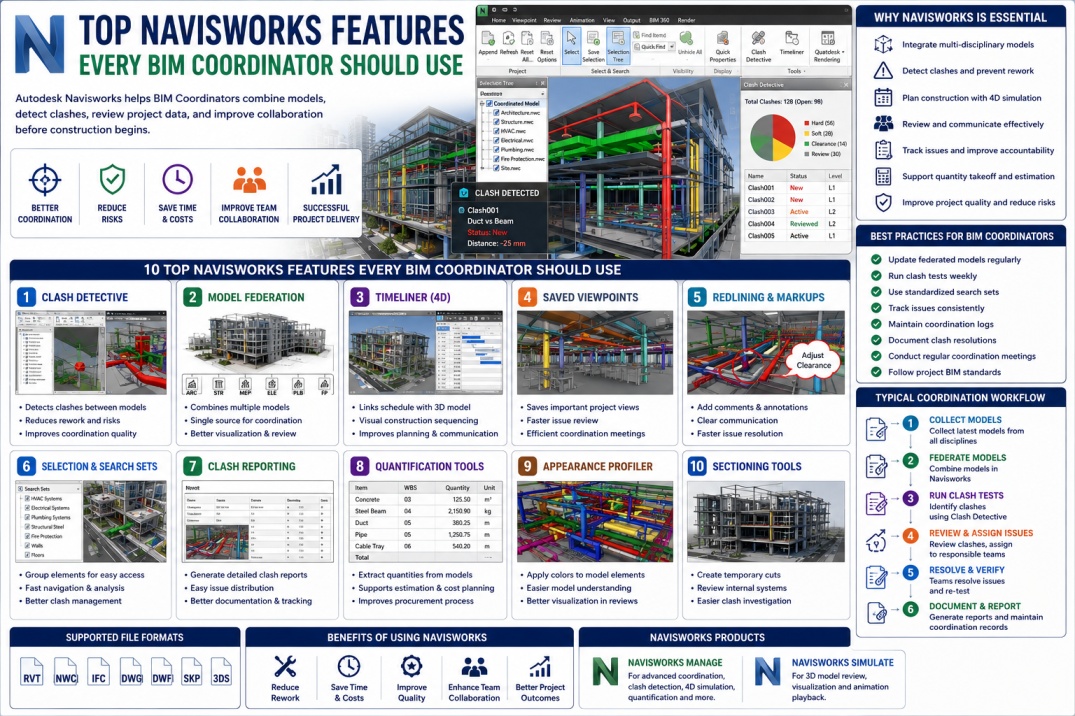
Building Information Modeling (BIM) has transformed the way construction projects are planned, coordinated, and delivered. Modern projects involve multiple disciplines working simultaneously, including architecture, structure, mechanical, electrical, plumbing, and fire protection systems.
As project complexity increases, coordination challenges also increase. Without proper coordination, design conflicts can remain hidden until construction begins, leading to costly rework, schedule delays, and project risks.
Autodesk Navisworks has become one of the most valuable tools for BIM Coordinators because it allows project teams to review, coordinate, analyze, and manage BIM models within a single environment.
By combining models from multiple disciplines, Navisworks helps teams identify issues before they reach the construction site. Understanding its most important features can significantly improve project efficiency and BIM coordination workflows.
What is Autodesk Navisworks?
Autodesk Navisworks is a project review and BIM coordination software that enables users to combine BIM models from various design platforms into a single federated model.
It supports model review, clash detection, construction simulation, quantity takeoff, issue tracking, and project visualization.
Navisworks is commonly used during design coordination and preconstruction phases to improve project quality and reduce construction risks.
Why BIM Coordinators Use Navisworks
BIM Coordinators are responsible for ensuring that models from different disciplines work together without conflicts.
Navisworks provides the tools needed to:
- Review multidisciplinary models.
- Detect clashes.
- Coordinate project teams.
- Track issues.
- Improve communication.
- Support construction planning.
- Reduce project risks.
These capabilities make Navisworks one of the most important software tools in BIM coordination workflows.
1. Clash Detective
Clash Detective is widely considered the most important feature in Navisworks.
It automatically identifies conflicts between different building systems before construction begins.
Common Clash Examples
- HVAC ducts passing through structural beams.
- Plumbing pipes intersecting electrical trays.
- Fire protection systems conflicting with ceilings.
- Cable trays colliding with mechanical equipment.
Benefits of Clash Detective
- Reduces construction rework.
- Improves coordination quality.
- Reduces project delays.
- Improves stakeholder communication.
- Saves construction costs.
Most BIM coordination meetings revolve around clash detection results generated from Navisworks.
2. Model Federation
Model Federation allows BIM Coordinators to combine multiple discipline models into a single project environment.
Rather than reviewing models separately, all project information can be viewed together.
Typical Models Included
- Architectural Models.
- Structural Models.
- Mechanical Models.
- Electrical Models.
- Plumbing Models.
- Fire Protection Models.
Federated models provide a complete view of project coordination and support better decision-making.
Benefits
- Improved visualization.
- Better project understanding.
- Enhanced multidisciplinary coordination.
- Centralized model review.
3. Timeliner (4D Simulation)
The Timeliner feature allows BIM Coordinators and project managers to link project schedules with BIM models.
This creates a 4D simulation where project stakeholders can visualize how construction activities will occur over time.
Benefits
- Improved construction planning.
- Better sequencing analysis.
- Enhanced stakeholder presentations.
- Reduced scheduling conflicts.
- Improved site logistics planning.
4D simulations help project teams identify potential scheduling problems before construction starts.
4. Saved Viewpoints
During coordination reviews, BIM Coordinators frequently need to revisit specific locations within a project.
Saved Viewpoints allow users to capture and store important project views.
Common Uses
- Clash review meetings.
- Issue tracking.
- Design coordination sessions.
- Project presentations.
Benefits
- Faster navigation.
- Improved communication.
- Efficient coordination workflows.
Many BIM teams organize viewpoints by discipline, coordination zone, or issue category.
5. Redlining and Markups
Navisworks allows users to create comments, annotations, and markups directly on project models.
Instead of communicating issues through emails alone, BIM Coordinators can visually identify problem areas within the model.
Benefits
- Improved issue communication.
- Better coordination records.
- Faster problem resolution.
- Reduced misunderstandings.
Visual markups make it easier for project teams to understand required corrections.
6. Selection Sets and Search Sets
Large BIM projects often contain thousands of model elements.
Selection Sets and Search Sets help BIM Coordinators organize project information for faster navigation and analysis.
Examples
- HVAC Systems.
- Structural Steel.
- Electrical Equipment.
- Plumbing Networks.
- Fire Protection Systems.
Benefits
- Improved model organization.
- Faster clash testing.
- Efficient project reviews.
- Better reporting workflows.
Search Sets are particularly useful because they update automatically when model data changes.
7. Clash Reporting
Finding clashes is only part of the coordination process. Project teams also need clear reports showing identified issues.
Navisworks automatically generates detailed clash reports that can be shared with stakeholders.
Information Included
- Clash location.
- Element IDs.
- Discipline information.
- Screenshots.
- Issue descriptions.
Benefits
- Improved accountability.
- Better issue tracking.
- Enhanced project documentation.
- Faster coordination meetings.
Well-organized clash reports help project teams resolve issues more efficiently.
8. Quantification Tools
Navisworks also includes quantification capabilities that support estimating and cost planning workflows.
Users can extract quantities directly from BIM models and project documentation.
Applications
- Material estimation.
- Cost planning.
- Procurement support.
- Quantity verification.
Accurate quantity information improves budgeting and resource planning.
9. Appearance Profiler
Appearance Profiler allows BIM Coordinators to apply color coding to model elements based on predefined criteria.
This makes complex models easier to understand and analyze.
Example Color Coding
- Structural Elements – Blue.
- HVAC Systems – Green.
- Plumbing Systems – Red.
- Electrical Systems – Yellow.
Benefits
- Improved visualization.
- Faster model review.
- Better coordination meetings.
- Enhanced project presentations.
Color-coded models improve project understanding for both technical and non-technical stakeholders.
10. Sectioning Tools
Large BIM models can be difficult to review because internal systems are often hidden behind walls, ceilings, and structural elements.
Sectioning Tools allow users to create temporary cuts through models and examine internal components.
Common Applications
- Ceiling coordination reviews.
- Equipment room analysis.
- MEP system investigation.
- Clash validation.
Benefits
- Improved model visibility.
- Better clash investigation.
- Enhanced coordination analysis.
- Faster issue resolution.
Sectioning is one of the most frequently used tools during coordination meetings.
Best Practices for BIM Coordinators
To maximize Navisworks effectiveness, BIM Coordinators should follow structured workflows and coordination procedures.
- Update federated models regularly.
- Run clash detection weekly.
- Maintain organized search sets.
- Track issue resolution consistently.
- Document coordination decisions.
- Use standardized clash reports.
- Conduct regular coordination meetings.
- Follow project BIM standards.
These practices help ensure project information remains accurate and coordination efforts remain effective.
How Navisworks Reduces Project Risks
Construction rework is one of the biggest sources of project cost overruns and schedule delays.
By identifying coordination issues before construction begins, Navisworks helps reduce:
- Design conflicts.
- Construction errors.
- Schedule delays.
- Material waste.
- Change orders.
- Coordination risks.
This contributes directly to improved project outcomes and stakeholder satisfaction.
Future of Navisworks in BIM Coordination
As BIM technology continues evolving, Navisworks is expected to become even more powerful through integration with cloud collaboration platforms, Digital Twins, Artificial Intelligence, and advanced analytics.
Future developments may include:
- AI-powered clash detection.
- Automated issue management.
- Cloud-based coordination workflows.
- Enhanced Autodesk Construction Cloud integration.
- Digital Twin connectivity.
These innovations will further improve BIM coordination efficiency and project delivery performance.
Conclusion
Autodesk Navisworks has become an essential tool for BIM Coordinators working on modern construction projects. Features such as Clash Detective, Model Federation, Timeliner, Search Sets, Appearance Profiler, and Sectioning Tools help teams coordinate more effectively and identify issues before they impact construction.
By mastering these capabilities, BIM Coordinators can improve project quality, reduce risks, enhance collaboration, and support successful BIM project delivery.
As construction projects continue growing in complexity, Navisworks will remain one of the most valuable tools supporting efficient BIM coordination and digital construction workflows.