Top 10 Revit Shortcuts Every BIM Professional Should Know
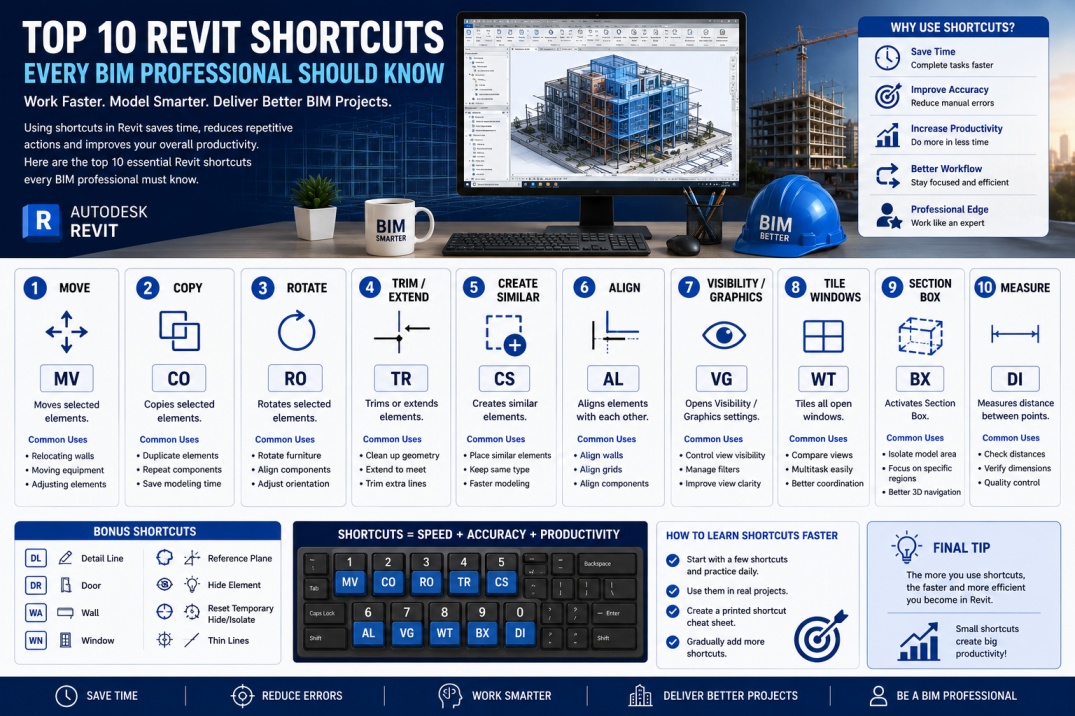
Autodesk Revit has become one of the most widely used BIM software platforms in the Architecture, Engineering, and Construction (AEC) industry. Whether you are an architect, structural engineer, MEP designer, BIM Modeler, BIM Coordinator, or BIM Manager, productivity plays a critical role in project success.
Many BIM professionals spend hours each day creating models, managing documentation, coordinating disciplines, and reviewing project information. While learning advanced BIM workflows is important, something as simple as keyboard shortcuts can dramatically improve efficiency.
Instead of constantly searching through menus and ribbons, Revit shortcuts allow users to perform common tasks instantly. Over time, these small time savings can add up to significant productivity improvements across large projects.
In this guide, we will explore ten essential Revit shortcuts that every BIM professional should master.
Why Revit Shortcuts Matter
Every action in Revit requires time. Navigating through toolbars and menus repeatedly can slow down project workflows and reduce productivity.
Keyboard shortcuts help users:
- Work faster.
- Reduce mouse movement.
- Improve workflow efficiency.
- Increase modeling speed.
- Enhance project productivity.
- Reduce repetitive actions.
- Improve overall user experience.
The most productive BIM professionals often rely heavily on shortcuts during daily project work.
1. MV – Move
The Move command is one of the most frequently used tools in Revit. Whether adjusting walls, relocating equipment, or repositioning model elements, the Move command is used throughout nearly every project.
Shortcut
MV
Why It Matters
Instead of selecting the Move tool from the ribbon, users can instantly activate it using the keyboard. This saves valuable time during modeling and coordination tasks.
2. CO – Copy
Copying elements is a common activity in BIM projects. Repeating similar components such as furniture, fixtures, equipment, and structural elements becomes much faster with this shortcut.
Shortcut
CO
Benefits
- Faster element duplication.
- Improved modeling speed.
- Reduced repetitive actions.
3. RO – Rotate
Many building elements require precise rotation during project development. The Rotate tool allows users to adjust element orientation quickly.
Shortcut
RO
Common Uses
- Furniture placement.
- Equipment alignment.
- Architectural components.
- MEP system adjustments.
Mastering this shortcut helps improve model accuracy and efficiency.
4. TR – Trim/Extend
The Trim and Extend tool is essential for cleaning up model geometry and connecting building elements.
Shortcut
TR
Applications
- Wall intersections.
- Line cleanup.
- Detailing workflows.
- Drafting improvements.
This shortcut is especially valuable for architectural and drafting workflows.
5. CS – Create Similar
Create Similar is one of the most underrated productivity tools in Revit.
Shortcut
CS
When an element is selected, Create Similar automatically activates the same category and family type for placement.
Benefits
- Faster modeling.
- Reduced menu navigation.
- Improved workflow consistency.
Many experienced BIM professionals use this shortcut dozens of times per day.
6. AL – Align
Accurate alignment is essential for creating clean BIM models.
Shortcut
AL
Common Applications
- Wall alignment.
- Grid alignment.
- Equipment positioning.
- Family placement.
Using the Align command regularly helps maintain model accuracy and consistency.
7. VG – Visibility/Graphics
Managing view visibility is a critical part of BIM workflows.
Shortcut
VG
This command opens the Visibility/Graphics dialog, allowing users to control categories, filters, linked models, and view settings.
Why BIM Professionals Love It
- Quick view control.
- Improved project navigation.
- Faster troubleshooting.
VG is one of the most frequently used shortcuts among BIM Coordinators.
8. WT – Tile Windows
Large BIM projects often require comparing multiple views simultaneously.
Shortcut
WT
This command automatically arranges all open views on the screen.
Benefits
- Improved multitasking.
- Better model review.
- Faster coordination workflows.
It is especially useful during quality control and clash review processes.
9. BX – Section Box
Working with complex 3D models often requires isolating specific areas for review.
Shortcut
BX
The Section Box command allows users to quickly focus on a selected portion of the model.
Advantages
- Better 3D navigation.
- Improved model analysis.
- Faster coordination reviews.
MEP and coordination teams frequently use Section Boxes when reviewing congested project areas.
10. DI – Measure
Measuring distances is a fundamental activity in BIM projects.
Shortcut
DI
Instead of placing temporary dimensions, the Measure tool provides quick distance verification.
Uses
- Quality control.
- Model validation.
- Design verification.
- Coordination checks.
This shortcut is simple but extremely useful throughout every project phase.
Bonus Productivity Shortcuts
In addition to the top ten shortcuts, BIM professionals should also learn:
- DL – Detail Line
- DR – Door
- WA – Wall
- WN – Window
- RP – Reference Plane
- EH – Hide Element
- HR – Reset Temporary Hide/Isolate
- TL – Thin Lines
These shortcuts can further streamline daily workflows.
How to Create Custom Revit Shortcuts
One of Revit's most useful features is the ability to customize keyboard shortcuts.
Users can create their own shortcut combinations by:
- Opening the View tab.
- Selecting User Interface.
- Choosing Keyboard Shortcuts.
- Assigning custom commands.
Organizations often standardize shortcuts across teams to improve consistency and training.
Tips for Learning Revit Shortcuts
Learning dozens of shortcuts at once can be overwhelming. The best approach is to gradually incorporate them into daily workflows.
- Start with five commonly used shortcuts.
- Practice daily.
- Avoid using ribbon commands when shortcuts are available.
- Create a printed shortcut reference sheet.
- Focus on commands used most frequently.
After a few weeks of practice, shortcuts become second nature and significantly improve productivity.
Why Employers Value Efficient Revit Users
Productivity directly impacts project profitability and delivery schedules. Employers appreciate BIM professionals who can work efficiently while maintaining model quality.
Understanding shortcuts demonstrates software proficiency and helps teams complete tasks faster without sacrificing accuracy.
In competitive BIM environments, even small productivity improvements can make a significant difference.
Conclusion
Mastering Revit shortcuts is one of the easiest ways to improve productivity and efficiency. Commands such as Move, Copy, Rotate, Align, Visibility Graphics, and Measure can save countless hours over the life of a project.
While advanced BIM skills remain important, combining technical expertise with efficient workflows allows professionals to deliver better results and work more effectively.
Whether you are a beginner learning Revit or an experienced BIM professional managing large projects, these shortcuts can help you model faster, coordinate better, and become a more productive user.