Common Revit Warnings and How to Fix Them: A Complete Guide for BIM Professionals
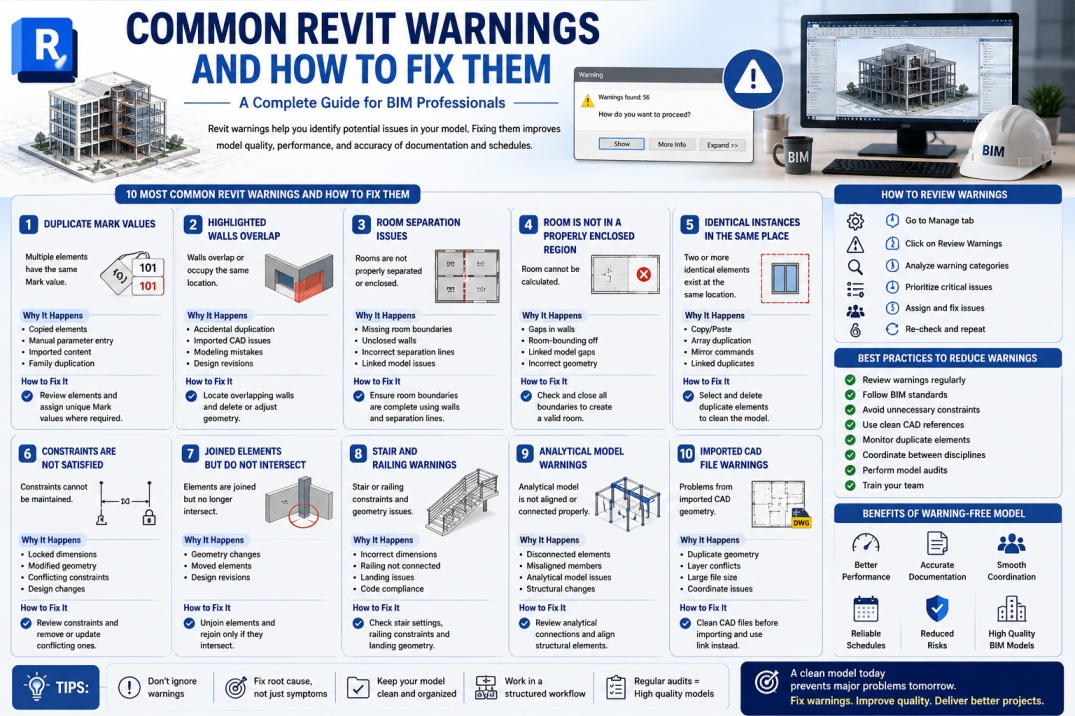
Autodesk Revit is one of the most powerful BIM platforms used by architects, engineers, contractors, and BIM professionals worldwide. As projects grow in complexity, Revit continuously monitors model quality and alerts users when potential issues are detected. These alerts appear as warnings.
Many users ignore warnings because the project continues to function normally. However, a large number of unresolved warnings can negatively affect model performance, coordination accuracy, documentation quality, and overall project efficiency.
Understanding Revit warnings and resolving them early is an important part of maintaining healthy BIM models. In this guide, we will explore the most common Revit warnings, their causes, and the best methods to fix them.
What Are Revit Warnings?
Revit warnings are notifications generated when the software detects conditions that may create problems within the model. Unlike errors, warnings do not prevent users from continuing their work. Instead, they highlight situations that require review.
Warnings can occur due to modeling conflicts, duplicate elements, room issues, constraints, geometry problems, and coordination challenges.
While a few warnings are normal in large projects, hundreds or thousands of unresolved warnings often indicate poor model health.
Why Revit Warnings Should Not Be Ignored
Ignoring warnings can create serious problems during later project stages. Unresolved issues often lead to inaccurate schedules, documentation errors, coordination conflicts, and reduced model performance.
Benefits of maintaining a warning-free model include:
- Improved project performance.
- Better BIM coordination.
- Reduced project risks.
- Accurate schedules and documentation.
- Faster model loading times.
- Improved team collaboration.
- Higher BIM quality standards.
Many BIM managers regularly review project warnings as part of their quality control process.
1. Duplicate Mark Values Warning
One of the most common Revit warnings occurs when multiple elements share the same Mark value.
The Mark parameter is often used for schedules, tagging, and element identification. Duplicate values can create confusion in construction documents and quantity schedules.
Why It Happens
- Copied elements.
- Manual parameter entry.
- Imported content.
- Family duplication.
How to Fix It
Review the affected elements and assign unique Mark values where required. If duplicate marks are intentional, verify that they align with project standards.
2. Highlighted Walls Overlap
This warning appears when two walls occupy the same location or intersect incorrectly.
Why It Happens
- Accidental duplication.
- Imported CAD geometry issues.
- Modeling mistakes.
- Design revisions.
How to Fix It
Use the warning review tool to locate overlapping walls. Delete duplicate walls or adjust wall geometry to remove conflicts.
Maintaining clean wall geometry improves model performance and documentation accuracy.
3. Room Separation Issues
Room-related warnings are common in architectural projects.
These warnings indicate that rooms may not be properly enclosed or separated.
Why It Happens
- Missing room boundaries.
- Unclosed walls.
- Incorrect room separation lines.
- Linked model coordination issues.
How to Fix It
Verify that walls, room separation lines, and linked elements create complete room boundaries. Use room tags and room schedules to validate results.
4. Room is Not in a Properly Enclosed Region
This warning occurs when Revit cannot determine the room boundary.
As a result, room areas and schedules may become inaccurate.
How to Fix It
Review surrounding walls and room separation lines. Ensure all boundaries are fully connected and room-bounding properties are enabled where necessary.
5. Identical Instances in the Same Place
This warning indicates that two or more identical elements occupy the exact same location.
Common Examples
- Duplicate doors.
- Duplicate windows.
- Duplicate furniture.
- Duplicate equipment.
How to Fix It
Select overlapping elements and remove unnecessary duplicates. This helps reduce model size and improve project performance.
6. Constraints Are Not Satisfied
Constraint-related warnings can become problematic if left unresolved.
Revit uses constraints to maintain relationships between elements.
Why It Happens
- Locked dimensions.
- Modified geometry.
- Conflicting constraints.
- Design changes.
How to Fix It
Review locked dimensions and constraint relationships. Remove unnecessary constraints and update geometry where required.
7. Joined Elements But Do Not Intersect
This warning occurs when elements are joined even though they no longer physically intersect.
Why It Happens
- Geometry changes.
- Moved elements.
- Design revisions.
How to Fix It
Unjoin the affected elements and rejoin them if necessary. Proper element joins improve model accuracy and visual representation.
8. Stair and Railing Warnings
Complex stair designs often generate warnings related to railing placement and stair geometry.
How to Fix It
Review stair dimensions, landing configurations, and railing constraints. Ensure all components comply with project standards and building codes.
9. Analytical Model Warnings
Structural projects frequently generate analytical model warnings.
These warnings indicate alignment or connectivity issues within the structural analytical model.
How to Fix It
Review analytical connections and ensure structural elements align correctly. Coordinate with structural engineers when necessary.
10. Imported CAD File Warnings
CAD imports can introduce various modeling and performance issues.
Common Problems
- Duplicate geometry.
- Layer conflicts.
- Excessive file size.
- Coordinate issues.
How to Fix It
Use CAD files as references whenever possible instead of permanently importing them. Clean CAD files before linking them into Revit projects.
How to Review Project Warnings
Revit provides a built-in Warning Review tool that allows users to view all active warnings within a project.
To access warnings:
- Go to the Manage tab.
- Select Review Warnings.
- Analyze warning categories.
- Prioritize critical issues.
- Assign corrections to team members.
Regular warning reviews help maintain model quality throughout the project lifecycle.
Best Practices for Reducing Revit Warnings
- Review warnings weekly.
- Maintain BIM standards.
- Avoid unnecessary constraints.
- Use clean CAD references.
- Perform model audits regularly.
- Monitor duplicate elements.
- Coordinate between disciplines frequently.
- Train team members on proper modeling techniques.
These practices help prevent warning accumulation and improve overall project performance.
Role of BIM Managers in Warning Management
BIM Managers play a critical role in maintaining project quality. They establish warning thresholds, monitor model health, conduct audits, and ensure compliance with BIM standards.
Many organizations include warning reviews as part of their BIM quality assurance procedures.
By addressing warnings early, BIM managers can prevent larger issues from developing later in the project.
Future of Model Quality Management
Artificial Intelligence and automated model checking tools are beginning to improve BIM quality management. Modern platforms can automatically identify warning patterns, prioritize issues, and recommend corrective actions.
As BIM technology continues evolving, automated quality assurance tools will become increasingly important for maintaining healthy project models.
Conclusion
Revit warnings are valuable indicators of model health and project quality. While some warnings may appear insignificant, unresolved issues can accumulate and negatively affect project performance, coordination, and documentation accuracy.
Understanding the causes of common warnings and implementing effective correction strategies helps BIM professionals maintain efficient, accurate, and high-performing models.
By regularly reviewing warnings, following BIM standards, and promoting good modeling practices, project teams can significantly improve BIM quality and support successful project delivery.